Skip to content
Chatlnked support

Help Center

Setup guides, troubleshooting steps, and practical answers for connecting Discord and Telegram with Chatlnked.

How to get started

Different setup paths. Same connected conversation.

Start path 1

Start from Chatlnked.com

Use this path when you want to begin from the Chatlnked website. Create or sign into your Chatlnked profile first and follow the setup flow from the dashboard.

Best when you want to begin by configuring Telegram before Discord or just want to begin from your Chatlnked profile first.

Create or Sign In
Start path 2

Start from Discord

Use this path when you want to add Chatlnked to a Discord server first, then finish setup inside Chatlnked.

Best when you are already working from Discord or want to install the Discord bot before opening the Chatlnked dashboard.

Install Discord Bot
Before you start

Know the answers to these four setup questions.

Chatlnked will walk you through setup, but it helps to know these answers before you begin.

Are you an admin on the Discord server, the Telegram group, or both?

If not, good news: Chatlnked can still work by giving you setup links to send to the right admin.

Which Discord server and specific channel do you want to connect?

This is where Chatlnked will sync Discord-side messages.

Which Telegram group do you want to connect?

This is where Chatlnked will sync Telegram-side messages.

Does your Telegram group use topics?

If yes, know which topic should be connected before you activate Chatlnked.

Browse answers

Help Topics

Each answer includes what the issue means, when it applies, what to do next, and where screenshots or walkthroughs should be added.

Getting Started

Getting started

Choose the setup path that matches where you are starting from.

What parts make up Chatlnked, and how do they work together?
Short answer

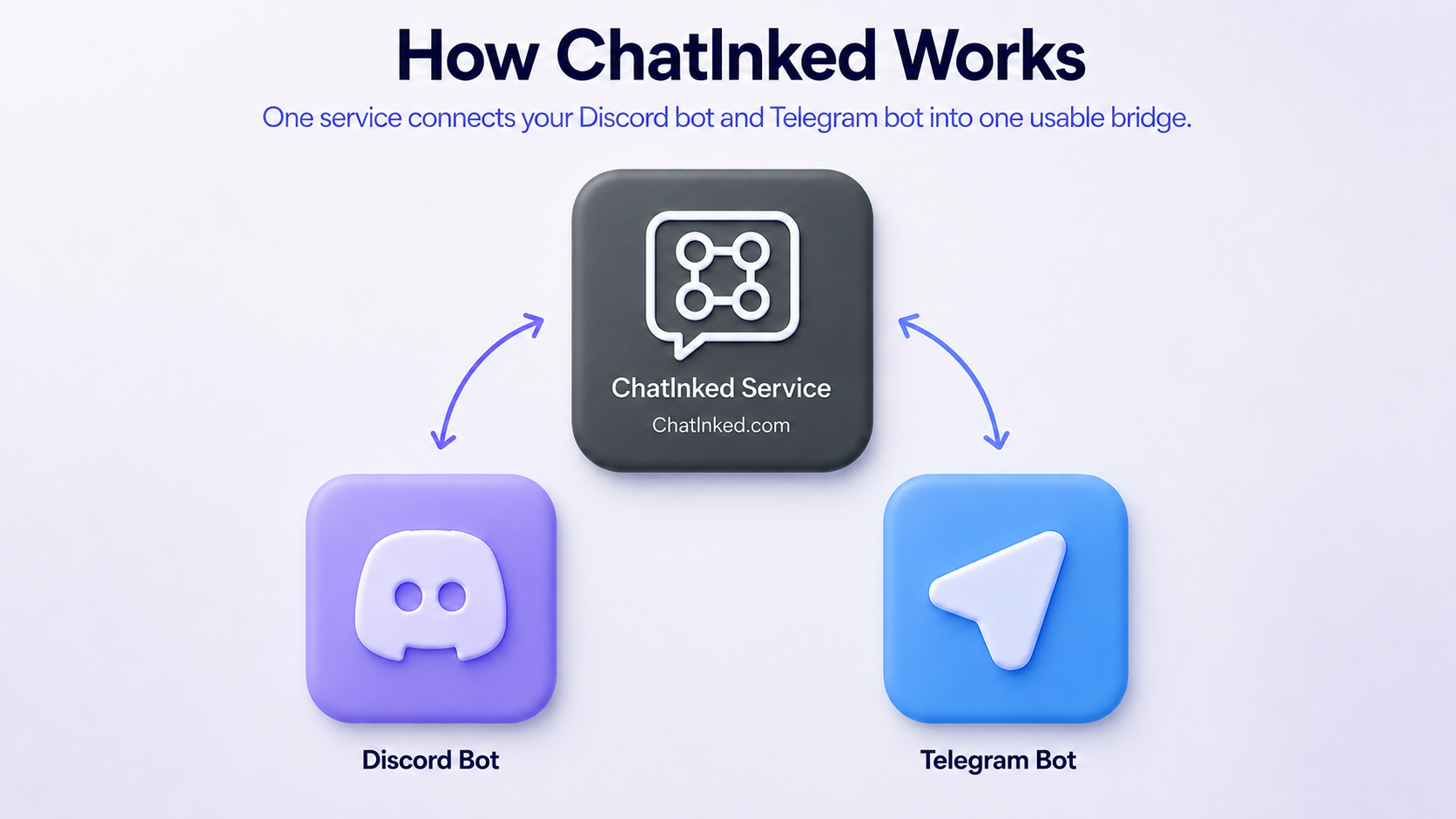
Chatlnked has three connected parts: the Chatlnked service, the Discord Bot, and the Telegram Bot. The service sits in the middle and connects the two bots so one selected Discord channel and one Telegram group or topic can stay in sync.

How the pieces work together

Chatlnked Service

This is the account and setup layer at Chatlnked.com. It is where you create your profile, choose your Discord and Telegram destinations, manage your connection, and control your subscription.

Discord Bot

The Discord Bot connects Chatlnked to your Discord server and selected channel.

Telegram Bot

The Telegram Bot connects Chatlnked to your Telegram group or topic.

Concept diagram

How Chatlnked connects Discord and Telegram

Diagram showing the Chatlnked service connecting the Discord Bot and Telegram Bot.

A completed Chatlnked setup includes the Chatlnked service, the Discord Bot, and the Telegram Bot working together as one bridge.

Setup note: Today, setup can begin from Chatlnked.com or from the Discord Bot. The Telegram Bot is still part of the completed connection, but starting the full setup process from Telegram is not available yet.

How can I start setting up Chatlnked?
Short answer

You can start from the Discord Bot itself, using the App Directory or begin from here at Chatlnked.com. Both paths eventually bring you into the same, guided Chatlnked setup flow.

What to do

Chatlnked.com Start Path

  1. You can start from Chatlnked.com by using Customer Login at the top of this page or the Create or Sign In button above.
  2. Either option takes you to the Chatlnked sign-up/sign-in screen.

Chatlnked.com Start Path walkthrough video below.

Discord Start Path

  1. If you're familiar with adding bots from your Discord server, use the Discord App Directory.
  2. You can also start from the Start from Discord option above. The Install Discord Bot button takes you directly to Chatlnked in the Discord App Directory. From there, follow the Discord install steps shown in the walkthrough video. To jump to that part of the video, click here.
  3. Once the bot is in your server, type /setup in your message bar to launch the Chatlnked Bot install process.
  4. Write down the Enablement Code on your screen and click the Sign Up to Chatlnked button button.

Discord Start Path walkthrough video below.

Video Walkthrough

Chatlnked.com Start Path

Watch the Chatlnked.com Start Path walkthrough.

Discord Start Path

Watch the Discord Start Path walkthrough.

Should I start from Discord or from Chatlnked.com?
Short answer

We prefer the Chatlnked.com start path because it does not require you to be a Discord expert and usually requires the fewest steps to complete sign-up. But Chatlnked is all about flexibility. We want Discord wizards to feel at home every bit as much as Telegram gurus, so Chatlnked gives you options to choose from based on your comfort level and needs.

What should I know before I start?
Short answer

Know which Discord server, Discord channel, Telegram group, and optional Telegram topic you want to connect.

What to do
  1. Confirm the Discord server and channel.
  2. Confirm the Telegram group and whether it uses topics.

Walkthrough video below.

Video Walkthrough

Discord and Telegram awareness walkthrough

Onboarding

Onboarding steps explained

Understand what Chatlnked is asking for during setup and why each step matters.

What happens during Chatlnked onboarding?
Short answer

Onboarding connects Discord, connects Telegram, lets you choose where messages should sync, and then activates the connection.

When this applies

Use this when you want the full setup flow in plain English.

What to do
  1. Sign in or create your Chatlnked account.
  2. Complete the Discord connection step.
  3. Complete the Telegram connection step.
  4. Choose the Discord channel and Telegram group or topic.
  5. Activate the connection and confirm messages sync as expected.
Screenshot / GIF placeholder

Screenshot montage of the onboarding wizard from start to activation.

Setup note: One connected platform is not enough. Chatlnked needs both sides ready before the bridge can activate.
Why is Chatlnked waiting for another admin?
Short answer

Sometimes the person starting setup is not the person who can approve Discord or Telegram access.

When this applies

Use this when setup says an admin still needs to complete part of the process.

What to do
  1. Copy the setup link from Chatlnked.
  2. Send it to the person who manages the Discord server or Telegram group.
  3. Have them complete only the approval step they control.
  4. Return to Chatlnked and continue setup after approval is complete.
Screenshot / GIF placeholder

Screenshot showing where the setup link appears.

Setup note: Do not blame the other admin or restart from scratch. The process is waiting for the right permission step to be completed.
Discord

Discord setup

Help for adding Chatlnked to Discord and choosing the right server and channel.

Why does Chatlnked need to be added to my Discord server?
Short answer

Chatlnked needs Discord bot access so it can send and receive messages in the channel you choose.

When this applies

Use this when you are reviewing the Discord approval screen or wondering why a bot is required.

What to do
  1. Choose the Discord server you want to connect.
  2. Approve the requested Discord permissions.
  3. Return to Chatlnked and confirm Discord shows as ready.
  4. Choose the Discord channel during final setup.
Screenshot / GIF placeholder

Annotated Discord approval screenshot. Final App Directory screenshots can be added later.

Setup note: Removing permissions after setup can break syncing even if the connection was previously working.
What if I am not the Discord server admin?
Short answer

Send the setup link to someone who can approve apps or bots for the Discord server.

When this applies

Use this when you can access the community but cannot add or approve the Discord bot yourself.

What to do
  1. Start setup from your Chatlnked account.
  2. Copy the setup link when Chatlnked asks for Discord approval.
  3. Send the link to the Discord admin.
  4. Continue after the approval step is completed.
Screenshot / GIF placeholder

Setup link screenshot with Discord approval callout.

Setup note: Do not ask the admin to create a separate Chatlnked account unless the setup flow specifically requires it.
Why does Chatlnked say Discord is not ready?
Short answer

Discord is usually not ready because the bot was not added, permissions are missing, or the approval step has not finished.

When this applies

Use this when the onboarding wizard shows Discord as incomplete.

What to do
  1. Confirm Chatlnked was added to the intended Discord server.
  2. Confirm the bot still has the required permissions.
  3. Confirm the correct admin completed the approval step.
  4. Return to Chatlnked and refresh the setup status.
Screenshot / GIF placeholder

Discord not-ready status screenshot with permission checklist.

Setup note: Do not assume Telegram is the problem just because messages are not syncing. The Discord side must also be ready.
Telegram

Telegram setup

Help for adding Chatlnked to Telegram groups and granting the right access.

Why do I need to add the Telegram bot to my group?
Short answer

The Telegram bot is how Chatlnked sends and receives mirrored messages in your Telegram group.

When this applies

Use this when setting up the Telegram side of the connection.

What to do
  1. Add the Chatlnked Telegram bot to the intended group.
  2. Grant the permissions requested by the setup flow.
  3. Return to Chatlnked and confirm Telegram shows as ready.
  4. Choose the final Telegram group or topic destination.
Screenshot / GIF placeholder

Telegram add-to-group screenshot or short GIF.

Setup note: Adding the bot to the group is not always enough. Missing permissions can still prevent syncing.
What if I am not the Telegram group admin?
Short answer

Send the setup link to someone who can add and approve the bot in the Telegram group.

When this applies

Use this when you can participate in the Telegram group but cannot manage bots or permissions.

What to do
  1. Copy the setup link from Chatlnked.
  2. Send it to the Telegram group admin.
  3. Ask them to complete the Telegram approval step.
  4. Return to Chatlnked once Telegram is ready.
Screenshot / GIF placeholder

Setup link screenshot with Telegram approval explanation.

Setup note: Do not add the bot to a different group just to move forward. The final group matters.
Why does Chatlnked say Telegram is not ready?
Short answer

Telegram is usually not ready because the bot is missing, the wrong group was used, or the bot does not have the needed permissions.

When this applies

Use this when the onboarding wizard shows Telegram as incomplete.

What to do
  1. Confirm the bot is in the intended Telegram group.
  2. Confirm the bot has the required permissions.
  3. Confirm the correct Telegram admin completed their step.
  4. Return to Chatlnked and refresh the setup status.
Screenshot / GIF placeholder

Telegram not-ready status screenshot with bot/admin callouts.

Setup note: Do not select a Telegram group or topic until the correct group is ready.
Topics

Telegram topics

Use topics when your Telegram group separates conversations into forum-style threads.

Does Chatlnked support Telegram topics?
Short answer

Yes. If your Telegram group uses topics, Chatlnked can target the topic selected during setup.

When this applies

Use this when your Telegram group has forum topics enabled.

What to do
  1. Confirm topics are enabled in the Telegram group.
  2. Make sure Chatlnked can see the group and topic destination.
  3. Choose the intended topic during final setup.
  4. Send a test message after activation.
Screenshot / GIF placeholder

Telegram group screenshot showing topics enabled.

Setup note: Choosing the group is not the same as choosing the topic. Pick the exact destination you want.
What if I do not see the Telegram topic I want?
Short answer

The topic may not be visible because the wrong group is selected, topics are not enabled, or permissions are incomplete.

When this applies

Use this when the expected Telegram topic does not appear in Chatlnked.

What to do
  1. Confirm you are looking at the correct Telegram group.
  2. Confirm topics are enabled for that group.
  3. Confirm the bot has the needed access.
  4. Refresh setup and check the topic list again.
Screenshot / GIF placeholder

Short GIF showing topic selection and refresh behavior.

Setup note: Do not activate against a fallback destination unless you are comfortable changing it later.
Enablement Codes

Enablement codes

Enablement codes grant eligible access without requiring the user to pick a paid plan first.

What is an enablement code?
Short answer

An enablement code is a code that gives an eligible account access based on the code type.

When this applies

Use this when you received a code from Chatlnked or from someone helping you get started.

What to do
  1. Sign in or create the Chatlnked account that should own the connection.
  2. Enter the enablement code where Chatlnked asks for it.
  3. Confirm the resulting access on the Subscriptions page.
  4. Continue setup.
Screenshot / GIF placeholder

Screenshot of the enablement code field using a fake scrubbed code.

Setup note: Do not redeem the code on the wrong account. Codes may be single-use or eligibility-limited.
Why is my enablement code not working?
Short answer

The code may be expired, already used, mistyped, or not eligible for the account you are using.

When this applies

Use this when Chatlnked rejects a code or does not apply the expected access.

What to do
  1. Check that the code was typed exactly as provided.
  2. Confirm you are signed into the intended account.
  3. Confirm the code has not already been redeemed.
  4. Open a support request from the dashboard if the code still fails.
Screenshot / GIF placeholder

Invalid code message screenshot.

Setup note: Copying extra spaces before or after the code can make a valid code fail.
Subscriptions

Subscriptions and licensing

Use the app dashboard as the source of truth for current pricing, plan access, and license state.

Where can I see current pricing?
Short answer

Sign in and open Subscriptions in your Chatlnked dashboard. Public FAQ text may not reflect current pricing.

When this applies

Use this when comparing plans, upgrading, or checking what your account can currently choose.

What to do
  1. Sign in to Chatlnked.
  2. Open the dashboard.
  3. Go to Subscriptions.
  4. Review the plans and pricing shown for your account.
Screenshot / GIF placeholder

Subscriptions dashboard screenshot.

Setup note: Do not rely on old screenshots or copied pricing text. The dashboard is the source of truth.
What happens when I hit the trial message limit?
Short answer

After the trial message limit is reached, additional messages are blocked until the account upgrades or activates eligible access.

When this applies

Use this when messages were syncing and then stopped during a trial.

What to do
  1. Check the account subscription or trial status.
  2. Look for a trial-limit notice in the destination platform.
  3. Open Subscriptions to choose the next plan or confirm eligible access.
  4. Send a test message after the account is active again.
Screenshot / GIF placeholder

Trial-limit blocked message screenshot.

Setup note: Do not treat a trial-limit block as a bot outage. The connection may be working correctly but blocked by license state.
Troubleshooting

Troubleshooting

Fix common setup and message-sync problems before opening a support request.

Why are messages not syncing?
Short answer

Messages usually stop syncing because of permissions, bot removal, wrong destinations, trial limits, or an inactive connection.

When this applies

Use this when setup completed but messages are not moving between Discord and Telegram.

What to do
  1. Confirm the connection is active in Chatlnked.
  2. Confirm the Discord channel and Telegram group or topic are correct.
  3. Confirm both bots are still present and permitted.
  4. Check Subscriptions for trial, license, or payment issues.
  5. Send a simple test message from both sides.
Screenshot / GIF placeholder

Troubleshooting flowchart for sync failures.

Setup note: Do not test from the wrong channel or topic. A healthy connection will only sync the selected destinations.
What should I check before opening a support request?
Short answer

Check account, subscription, bot presence, permissions, and selected destinations first.

When this applies

Use this when you are still stuck but want to give support useful context.

What to do
  1. Confirm you are signed into the account that owns the connection.
  2. Check the dashboard connection status.
  3. Check the selected Discord channel and Telegram destination.
  4. Check whether the bots are still installed and permitted.
  5. Include screenshots when opening a support request from the app.
Screenshot / GIF placeholder

Pre-support checklist screenshot.

Setup note: Opening a ticket from the wrong account can slow down support because the connection context may not be visible.
Offboarding

Disconnecting and uninstalling

Stop syncing, remove bots, or leave Chatlnked without needing a support ticket.

How do I stop Chatlnked from syncing messages?
Short answer

Stop syncing from the Chatlnked dashboard by managing or disconnecting the active connection.

When this applies

Use this when you want to pause or end the Discord and Telegram bridge.

What to do
  1. Sign in to the account that owns the connection.
  2. Open Manage Chat Connections.
  3. Disconnect or update the active connection.
  4. Confirm messages no longer sync.
Screenshot / GIF placeholder

Manage Chat Connections screenshot showing disconnect controls.

Setup note: Removing only one bot may leave confusing partial state. Disconnect from Chatlnked first when possible.
What happens if I delete my Chatlnked account?
Short answer

Deleting your account ends your Chatlnked access and may attempt platform cleanup, but external bots may still need to be removed by a platform admin.

When this applies

Use this before deleting an account or leaving a connected community.

What to do
  1. Disconnect active connections first when possible.
  2. Remove Chatlnked from Discord if you manage the server.
  3. Remove the Telegram bot if you manage the group.
  4. Delete the account from the dashboard if you still want to proceed.
Screenshot / GIF placeholder

Account deletion and bot removal screenshots.

Setup note: Do not assume account deletion can always remove bots from external platforms automatically.